Showing posts with label Android. Show all posts

Google makes some big announcements this week!


Google's I/O conference is this week and they have made some big announcements. Here's a summary and some places you can find more information.


1. Google Docs offline now available - edit and create Google Docs offline and they will be synced with your Docs account once you have an internet connection.

2. Chrome Browser exits beta and is available for all Android 4.0 devices and is available for iOS. Use the worlds most used browser on your Android and Apple devices.

3. Project Glass demo - Project Glass is a new project uses glasses and

4. Google+ Events - events planning and social networking combined

5. Jelly Bean - Android 4.1 - newest version of Android with some cool new features, including a new notification center.

6. Nexus 7 - new Google branded 7" Android Tablet

7. Google Maps ability to save maps for use offline - great when you have no signal, like in a subway.

8. Google Now - voice control and widgets that show you information based on your location

9. 3D buildings in Google Earth - fun and educational

10. Lots of updates to existing Google and Android apps (like Docs, Google+, Hangouts on Air, Chrome, and more)

11.  Pinterest for Android - popular app officially comes to Android

12. Nexus Q - streams audio and video from the cloud to your TV and Stereo, and is controlled by your Android phone or tablet. It's also built in the USA. You can also have your friends stream their content through your Q.

13. Google Drive released for iOS - access all your files on your Apple device.


Pretty exciting stuff, much of which will benefit educators and students with the updates. New devices for use in education, updates to already great apps, and more Google apps available for Apple devices. Very cool.

I'm jealous of those attending. While the tickets were $900, you got to attend a great conference, see a great opening keynote that many said was the best they've ever seen, and you get a swag bag with the Nexus Q, Chromebox, Nexus Phone and Nexus 7 tablet. Pretty cool.

In related news, my CR-48 beta Chromebook got updated to Chrome v 20 today and it's awesome. It was surprising because the CR-48's weren't originally supposed to get the update.


Resources:

Android Central - great resource for Android and Google
http://www.androidcentral.com/google-io-2012-day-one-round

The Official Google Blog 


The Verge - great resources for all things technology 
http://www.theverge.com/2012/6/27/3121011/google-i-o-highlights-news-2012-nexus-7-nexus-q


Related:

Google for Education Resources

Android for Education Resources

Google Chromebooks and Chrome OS revisited - great for education


  • Digg
  • Del.icio.us
  • StumbleUpon
  • Reddit
  • RSS

List of some Free Online Scientific/Graphing Calculators


Calculators are a necessary tool in science and math classes. But, they don't have to cost the students anything.

First, there are a ton of free calculator apps available for every smartphone (iOS, webOS, Android, BB, Windows) so any student with a smartphone or PDA can get one on there. The paid apps are usually only $0.99 - $1.99 too.

Second, there are some free downloadable calculators, such as Microsoft Math and most computers have a built in calculator.

But, free, online calculators are also a great resource for educators and students. There are calculator extensions for Chrome and Firefox that students can use on their computer or through their Google account.

Here are some free online calculators that I like:


Richard Byrne over at Free Technology for Teachers also recommends EnCalc as a great, free, online scientific calculator. 


Desmos

A Better Calculator is a new, free, online graphing calculator from Demos (who also offers a service to create online interactive media). There is nothing to download as it runs online. It is easy to use, full color, full functioned. You can share your work online or even share it with others (like your students) or students can share it with their teacher.


Google is now a graphing calculator. Enter the equation in the search bar and you get your graph. You can even do multiple functions, just separate them by a comma. You can also zoom and pan in the graphs. You can also do other calculator functions using the search bar. 


Calculator

To use Google’s built-in calculator function, simply enter the calculation you’d like done into the search box.
Example:  


Here's a screen shot of a quick one I did: y = 4x + 5


According to Google, "This feature covers an extensive range of single variable functions including trigonometric, exponential, logarithmic and their compositions, and is available in modern browsers."


Web 2.0 Calc.com - free online scientific calculator. Available on mobile browser. Can be embedded in your own website or blog too.


Math.com's online calculators - basic, scientific, square root, and more.


eCalc online calculator and math help - has an online calculator along with math help. There are also downloadable calculators, an iPhone app, iGoogle gadget, and embeddable widget for your site. There is also an unit conversion calculator.


Scientific Calculator - online scientific calculator that takes up whole web page. Makes it easier to read and use.


Save money and use free calculators instead of buying them!


Related:

Desmos - create media rich educational content online


  • Digg
  • Del.icio.us
  • StumbleUpon
  • Reddit
  • RSS

Aviary launches free mobile app photo editor for iOS & Android


Aviary Photo Editor

Aviary is a great resource that I use constantly. I use the Falcon and Talon online image editors to grab images from the web and edit/crop/add effects to use with my blog and with lesson materials. There are browser extensions to use with the online apps and it's very powerful.

A while back, Aviary launched an add-on for mobile devices that allowed you to use Aviary within mobile apps. Yesterday they announced that Aviary is now available as a free, stand-alone mobile app for iOS and Android.


The Aviary mobile app is free and features an easy-to-use, intuitive interface with effects, stickers, color balance, crop and rotate, brightness, contrast, saturation, drawing, text, cosmetic tools and more. There are more effects available for purchase in effects packages ($0.99) and more effects and tools are being added. 

This is a great mobile tool that can be used for photo editing and effects on iOS and Android devices by teachers, students, bloggers, and for personal use, greatly increasing the abilities of your device. I now have the ability to do more of my work on my mobile device using this app. I was using it last night to edit some photos that I'm using in a project and it was very easy to use. 


 Try it out for yourself:


Related:

Aviary Falcon - online image markup

Aviary Education - safe environment for Aviary for Students
Aviary for Facebook Released - image editing app right in Facebook
Aviary Photo Editor now available to Flickr users-replacing Picnik
PicMonkey - free online photo editing (from some of the same people who made Picnik)

Great, free Image editing sites and software

Two More Free Image Editing Resources


  • Digg
  • Del.icio.us
  • StumbleUpon
  • Reddit
  • RSS

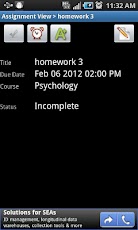
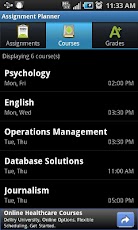
Assignment Planner - free Android app for Students

Assignment Planner FREE


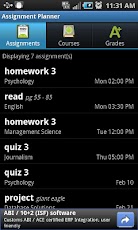
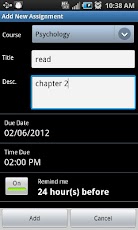
I just learned about Assignment Planner from Edudemic. Assignment Planner is a free app for Android that keeps track of assignments, homework, projects, course and class information, and grades. It includes the ability to sort assignments by due date or course and set reminders for assignments. It's easy to use and got excellent reviews. (Here are some more apps for students for notes and class planning)

The free version has ads (at bottom of the screen - never bother me on my ad supported apps) but the pro version with no ads is only $1.29.

This is a great resource for students to stay organized in school and not forget about things.


Check it out in the Google Play app store and on Facebook.


Related:

10 Great, Free Apps for Students for Notetaking and Class Planning


Evernote - notetaking, web clipping, and more, on any device

Comparison of some popular note taking apps

Getting Students and Teachers Organized - tips and resources - includes links and resources for electronic and paper planning

10 Things Students Use Technology for in my Class


  • Digg
  • Del.icio.us
  • StumbleUpon
  • Reddit
  • RSS

Bloomin' Apps - Apps to Support Bloom's Taxonomy - updated!


Picture

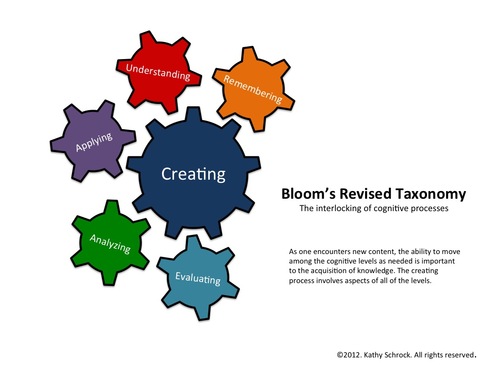
I've written about the interactive app charts that Kathy Schrock has created that organized different iOS, Android, and Google and Web 2.0 apps based on the Bloom's Taxonomy level. They are a great way to find Apps based on what you are trying to have the students do.

She just updated them with a new diagram for Bloom's Taxonomy. The new diagram is interlocking gears instead of a pyramid. It also emphasizes Creating as the biggest thing we should be having students do.

This is a great resource for all teachers looking for some great apps to use with students.


Related:

Bloom's Taxonomy and Technology - great resources for teachers

Android Resources for Education - apps, how-to's, reviews, forums, and more.

Android Apps related to Bloom's Taxonomy

Google for Educators Resources


  • Digg
  • Del.icio.us
  • StumbleUpon
  • Reddit
  • RSS

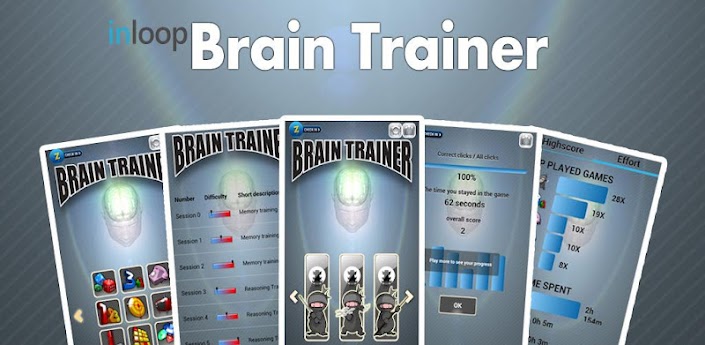
Brain Trainer app for Android helps you give your brain a workout


Brain Trainer app for Android is a free (full version for $0.99) app that has games to help you improve your memory and give your brain a workout.

There are games on math, letter and number sequences, picture memory games, shapes, colors, sudoku and puzzles.

This is a great app that can be used for fun or to help improve memory and thinking skills.


Brain Trainer Free

  • Digg
  • Del.icio.us
  • StumbleUpon
  • Reddit
  • RSS

Evernote Hello Lauches for Android - helps you remember people you meet


Evernote, one of my favorite resources, has some other products besides its main one. Evernote also has the Evernote Trunk. The Trunk has apps that integrate with Evernote, scanners that scan directly to Evernote, pens that record what you write and send it to Evernote (Livescribe), and much, much more. There's even one that allows you to save things from your Twitter and Facebook streams directly into Evernote. Evernote also has Clearly, a service that allows you to clear out adds and pop-ups on sites so that you can just read the article and Skitch is an app that allows you to annotate and mark up images and save them in Evernote.

Evernote launched Evernote Hello six months ago. It is an app that helps you remember people you meet based on the context of meeting them. They have just released Evernote Hello for Android. It is also available on iOS.

Evernote Hello helps you remember people based on the connections - relating names and faces to events, locations. With Hello, you can enter the person's email address and add a picture of them, location, time, notes, and more. 

You can add new people by entering their information yourself, pulling information from your address book, or letting them enter their contact info into your phone. 


What's nice is the ability to quickly take a picture of the person and add information that will help you remember where you met them and in what context. You can also connect your Hello account to your LinkedIn account and it will try to match the person's email address with a LinkedIn profile. The app will also create an "Encounter" which is the context of the meeting, including a map, street view of location, links to other profiles of people you met in similar context, notes, photos and related Evernote notes that you have. 


Another useful feature is the Mosaic, which is the home screen for Hello, containing faces of the people you have met ordered chronologically to help you find them. 


Evernote Hello is a great way to remember all the people you meet as an educator - other educators at conferences, students, vendors, and more.

Get Evernote Hello for Android from Google Play

  • Digg
  • Del.icio.us
  • StumbleUpon
  • Reddit
  • RSS

Update on InstallFree Nexus and Rndr - work great on a Chromebook!


Nexus Logo

Earlier today I wrote about InstallFree Nexus and Rndr, apps that allow you to use other apps, like LibreOffice and Java, on any device. Here's the full article: http://educationaltechnologyguy.blogspot.com/2012/05/installfree-nexus-us-ms-office-or.html


I've been using them all day on my CR-48 Chromebook and they work great! The biggest thing that I was not able to do on my Chromebook was accessing our Gradebook system, which runs on Java. Using Rndr, I was able to access it and use it on the Chromebook. It's not as speedy as on a Windows device, but not bad at all, and the company making Rndr tells me that there are some performance improvements coming shortly.

You can also use their apps to use LibreOffice (or MS Office) in the cloud on any device, including iOS, Android and Chrome. I was using the LibreOffice version and I was able to open up, view and edit LibreOffice and MS Office files directly from my Google Drive without needing to convert them to Google Docs formats.

All-in-all, these apps are a great resource for anyone, especially those using Chromebooks.

Check out my full review here: http://educationaltechnologyguy.blogspot.com/2012/05/installfree-nexus-us-ms-office-or.html


Related:

Google Chromebooks and Chrome OS revisited - great for education
iPads, Chromebooks, on-device apps, cloud apps - great discussions


  • Digg
  • Del.icio.us
  • StumbleUpon
  • Reddit
  • RSS

InstallFree Nexus - us MS Office or LibreOffice on any device through the cloud

Nexus Logo


InstallFree Nexus is an application I just learned about that allows you to use different applications on any device you want, while optimizing for that device. You can use Microsoft Office or LibreOffice on an iPad, Android Tablet, Chromebook or any device with a web browser. You can view and edit documents that you have stored in Dropbox, Google Drive, Office 365 and others and even access web apps that are written in Flash, Silverlight or Java. InstallFree Nexus makes it possible to use rich web applications written in Flash, Silverlight and Java on any device. All you need is a browser.

InstallFree Nexus Web Connectors

It's cloud based platform that allows you real-time access to these apps. It uses HTML 4 and 5 to work.

nexus overview chart resized 600

It is currently in public beta and will be going to full production this summer. There will be free and paid versions. 

The free version will be called InstallFree Nexus Basic and will include the following functionality:
  • The full LibreOffice application suite for creating and editing documents from any device or browser.
  • Full-fidelity viewing for Microsoft Office documents.
  • Seamless integration with Dropbox, Google Drive, SkyDrive, SharePoint, Office 365 and other storage services.
The paid version will be called InstallFree Nexus Premium and will include the following functionality:
  • All the capabilities available in Nexus Basic
  • Microsoft Office 2010 (Word, Excel, PowerPoint and Publisher) subscription license:
  • $4.99 per month / $49.99 per year for academic users (students, teachers, etc.)
  • $19.99 per month / $199.99 per year for standard users
This is a very useful application that schools could use to make it easier for students and faculty to use certain applications. This makes things platform/OS agnostic and would allow everyone access to these apps and resources and would be especially useful in a BYOT/BYOD environment. It would also eliminate the need to install certain applications on devices. LibreOffice is an excellent free app that does everything that MS Office does. With LibreOffice and InstallFree Nexus, schools can eliminate the need for Microsoft Office licenses. 


Rndr enables any browser to render plugins like Java that may not be compatible with the device. This is very useful for the Chromebooks. 


All of there products are available in the Chrome Web Store at the following links:
- Nexus with Microsoft Office: http://goo.gl/grC0j
- Nexus with LibreOffice: http://goo.gl/zmttd
- Rndr: http://goo.gl/SkqRC


  • Digg
  • Del.icio.us
  • StumbleUpon
  • Reddit
  • RSS

KingSoft free office suite software


After posting about SSUITE free office software, I found out about KingSoft Free Office Suite Software on Google+.

KingSoft Free Office Suite Software includes word processor, spreadsheet, and presentation software and is easy to use, looking very similar to Microsoft Office. It is compatible with Microsoft Office file formats, as well as other file formats, and Microsoft Office can open KingSoft Office files without any additional software. It also features a built-in PDF converter and multiple document tabs.

KingSoft Office is also available for Android. Kingsoft free Office for Android allows you to CREATE, VIEW and EDIT all documents used by Microsoft.

This is another great option for teachers and students to have free software tools.


Related:

Free Alternatives to Microsoft Office


  • Digg
  • Del.icio.us
  • StumbleUpon
  • Reddit
  • RSS

Apps to Support Bloom's Taxonomy - Android, Google, iPad and Web 2.0


I had seen two great charts Kathy Schrock had made about Apps to Support Bloom's taxonomy. I have seen, and used, the ones for Android and Google. I just found two more on her site: iPad and Web 2.0 Apps.


The charts are interactive and include links to apps organized by the category from Bloom: Creating, Evaluating, Analyzing, Applying, Understanding, and Remembering. The apps I've checked out are all free. Some apps show up in more than one category too.

The iPad and Android charts also have an activity listed under the apps, such as commenting, video creation, etc.


These are great starting points to find apps to use with your students based on Bloom's Taxonomy. Check them out. http://www.schrockguide.net/bloomin-apps.html


Related:

Bloom's Taxonomy and Technology - great resources for teachers

Android Resources for Education - apps, how-to's, reviews, forums, and more.

Android Apps related to Bloom's Taxonomy

Google for Educators Resources


  • Digg
  • Del.icio.us
  • StumbleUpon
  • Reddit
  • RSS

Adobe Photoshop Touch Review - very nice app


Adobe Touch Apps family

Adobe recently released a host of Adobe TouchApps - Photoshop Touch, Ideas, Collage, Debut, Kuler, Proto, and Carousel. Design, edit, and elegantly present your work using six new Adobe® Touch Apps designed for your tablet. Whether you use a stylus or just your fingertip, intuitive touchscreen features provide easy, precise control for a variety of creative tasks. Transfer files through Adobe Creative Cloud for refinement in Adobe Creative Suite® software — or to view, access, and share from almost anywhere.

I have been using Adobe Photoshop Touch for the last couple of weeks on a loaned iPad and a friend has it on his Android tablet. The Photoshop Touch app lets you quickly combine images, apply professional effects, share the results with friends and family through social networking sites like Facebook, and more. If you have used Photoshop, the Touch app will be a breeze for you. If you haven't used Photoshop, don't worry, the Touch app is easy to use, has interactive tutorials, and there are tons of help resources on Adobe's site and for educators on the Adobe Education Exchange, which is a resource site for educators who use Adobe products. Tips, instruction guides, videos, a community of users, lesson examples and much more are all available to help teachers and students using Adobe products.


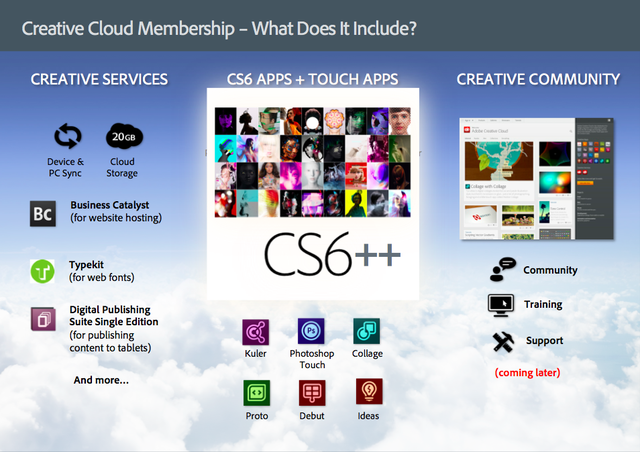
Adobe's new Creative Cloud/Suite 6 for Students and Educators integrates the Photoshop Touch app so that you can work on your projects seamlessly from mobile to desktop. 


The Photoshop Touch app was very easy to learn and get started with. I did use some of the tutorials, and had read a few posts on the education exchange site, but it was very intuitive. Features include layers, effects, filters, tone and edge editing, text, search for images, share images, wireless printing, and much more. The tools are all, literally at your fingertips on the app. Because it's not the full version of Photoshop, it's easier to find the tools that you use the most. It is probably the best image editing app for tablets around and still has all the really important and useful features from the full version of Photoshop. It's easy to bring in an image, edit and manipulate it, and the save it. It's only $9.99, which is super cheap for Photoshop and the Education Volume app store has it for $4.99, which makes it very affordable for education.

Adobe-photoshop-touch-ipad-review-7

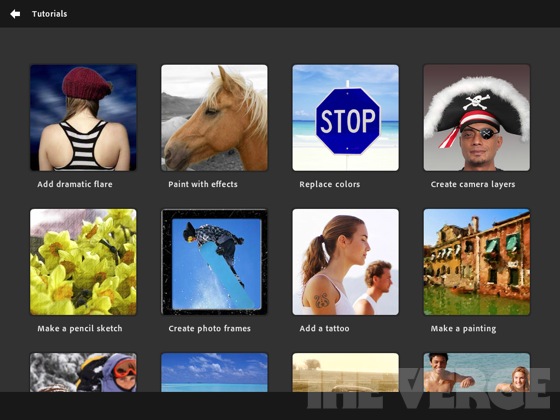
I had some fun playing with different pictures I took with the iPad, although the quality of them wasn't great using the iPad's camera, so I also brought in some other pictures and graphics files to play with. It was very easy to clean up images and there is even a gallery of styles and effects that you can look at and then see a step-by-step tutorial on how to achieve those effects.

This is a great app for education. It's inexpensive, easy to use, full featured, and a tool that students should learn to use as it will help them in college and careers.

Here are some screenshots from Adobe's site:
pstouch-1-295x221
pstouch-2-295x221

pstouch-3-295x221

pstouch-5-295x221


Adobe Announces Creative Cloud/Suite 6 for Students and Educators
Link to Photoshop Touch page on Adobe's site: http://www.adobe.com/products/photoshop-touch.html

Original Announcement of app: Adobe PhotoShop Touch for iPad2 now available
Photoshop Touch for iOS. $9.99 


Photoshop Touch for Android. $9.99 


DISCLAIMER: I received a free copy of the Adobe Photoshop Touch app to do this review. I have been using it, and the Adobe Education Exchange, as part of this review.


  • Digg
  • Del.icio.us
  • StumbleUpon
  • Reddit
  • RSS